Assign Multiple Languages To  Documents
Roles: Editor, Reviewer, Admin Plans: Starter, Pro, Advanced, Enterprise
About this task:
Assigns additional languages to the sameInformationUnit. This means the documentation file you assign to this InformationUnit is displayed for both languages in the EnduraDocs Viewer and in
the Documentation PortalInstructions
Requirements:
- Revision State = Draft.
- User Role = Editor, Reviewer, or Admin.
-
 Go to the Product Explorer and open your product.
-
Go to the revision panel
 .
.
-
 Select the Document you want to edit
  .
.
 It must have a
documentation file assigned for this.
It must have a
documentation file assigned for this. -
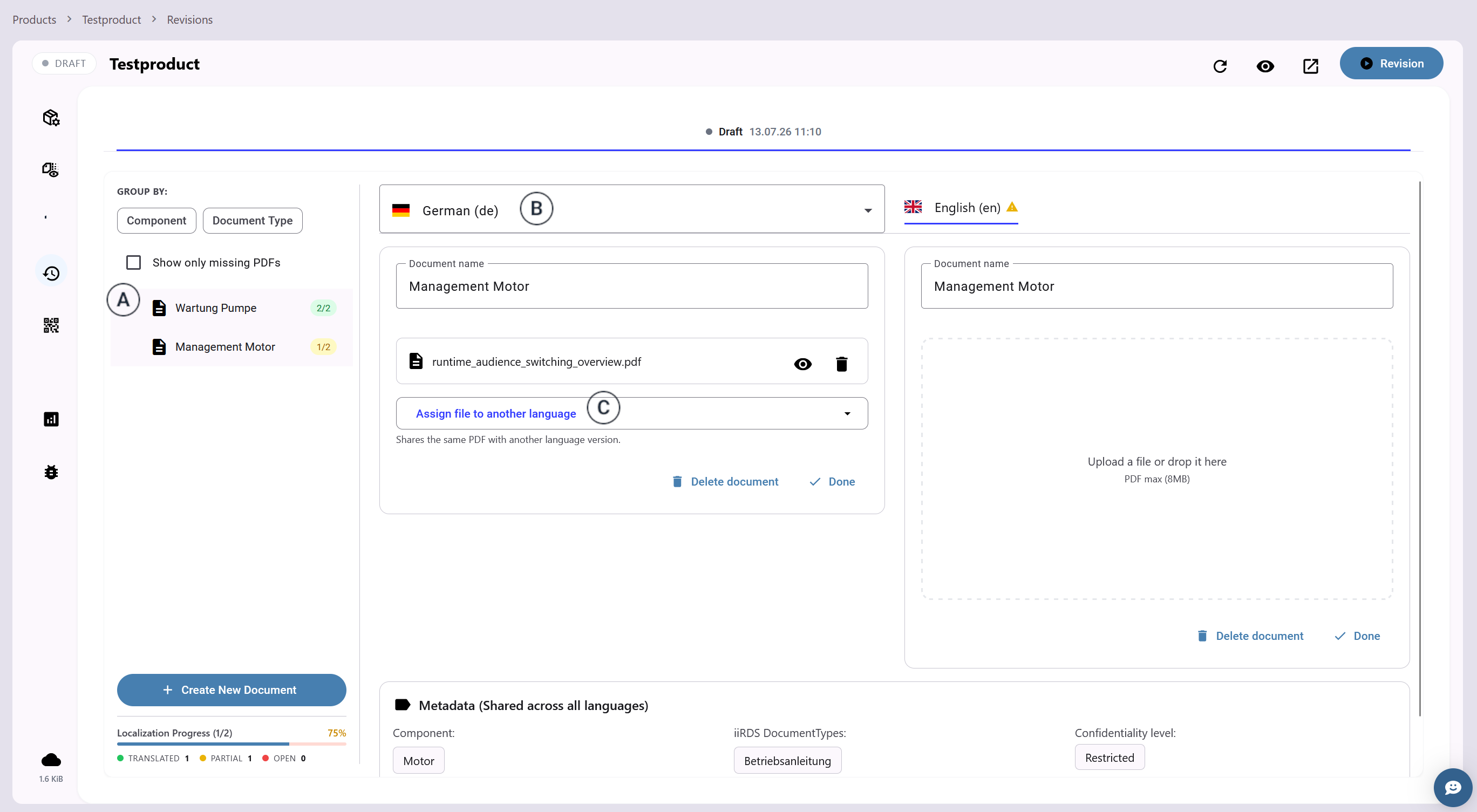
Select a primary language
 .
The file assigned to the Document in the primary language will be shown for the additional language you assign to
it in the EnduraDocs Viewer and Documentation Portal.
.
The file assigned to the Document in the primary language will be shown for the additional language you assign to
it in the EnduraDocs Viewer and Documentation Portal. -
Click "Edit
 .
.
-
Click "Assign
file to another language"
 .
Then select the additional language you want to assign to this Document from the dropdown menu.
.
Then select the additional language you want to assign to this Document from the dropdown menu.
-
Click "Done".
 The new language is assigned. You can no longer assign a file to the
secondary language. Instead, the file assigned to the primary language is used
in the EnduraDocs Viewer and Documentation Portal.
The new language is assigned. You can no longer assign a file to the
secondary language. Instead, the file assigned to the primary language is used
in the EnduraDocs Viewer and Documentation Portal.