Create Available Components
Roles: Editor, Reviewer, Admin Plans: Starter, Pro, Advanced, Enterprise
About This Task
Determine the available choices for the Components in your revision. Only Components that you create or select during this step will be displayed later in your revision as metadata or to categorize Documents in the revision panel.
Connects the Document to a part of your device. This allows you to differentiate between
Documents with the same information type (DocumentType) that belong to different parts of your device. Typical components
would be pump, motor, control panel.
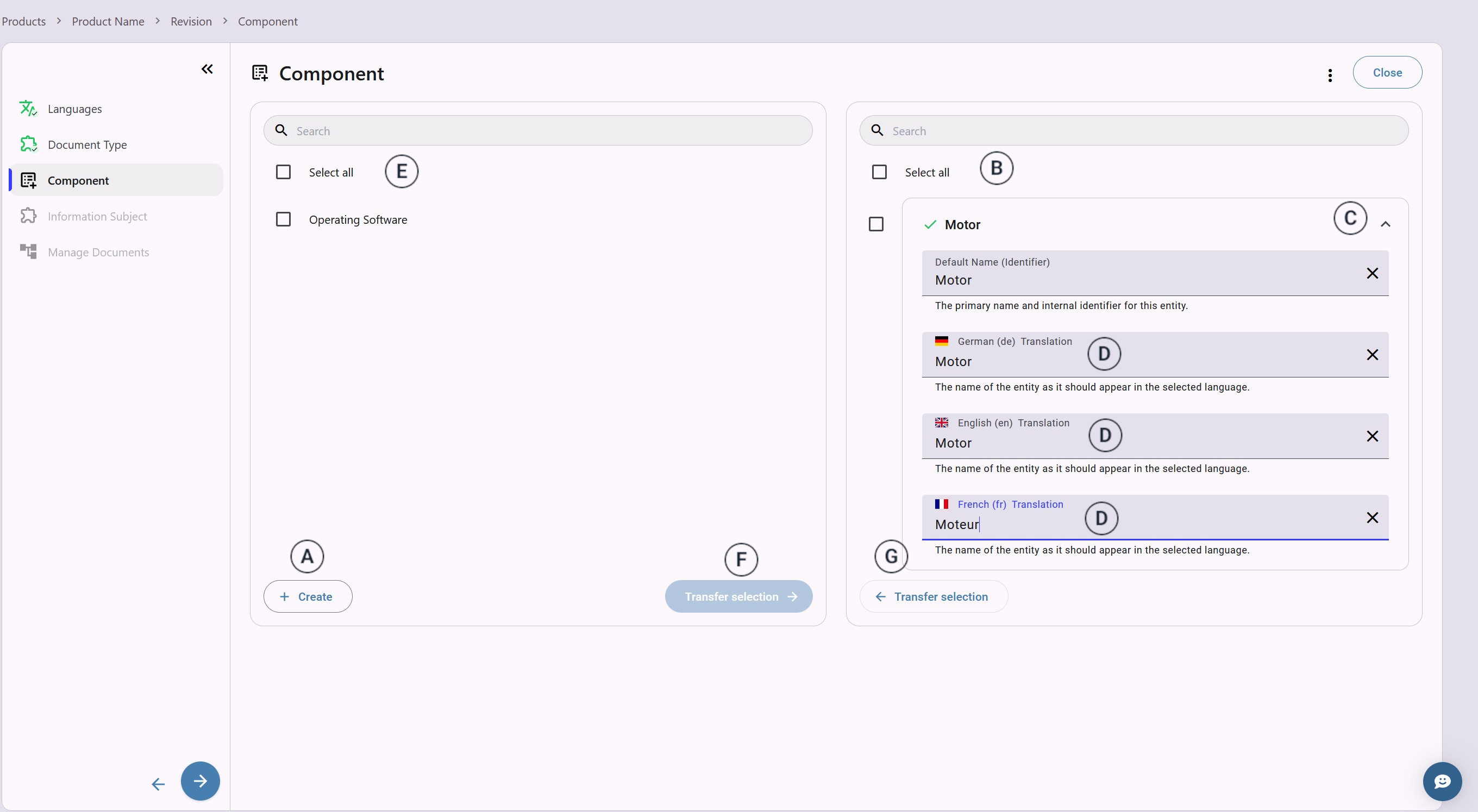
In the available Components window, you can set up the Components that will be available in this revision to streamline later processes. Here, you
can also assign publicly visible names to each Component. This enables you to hide terms that are only fit for use within the company from
the operating personnel.
Documents in the revision panel.
Connects the Document to a part of your device. This allows you to differentiate between
Documents with the same information type (DocumentType) that belong to different parts of your device. Typical components
would be pump, motor, control panel.
In the available Components window, you can set up the Components that will be available in this revision to streamline later processes. Here, you
can also assign publicly visible names to each Component. This enables you to hide terms that are only fit for use within the company from
the operating personnel.
Instructions
-
 Click "+Create"
  .
.
 The Component creation window opens.
 -
Type a unique name for your Component in the input field. Then click "Create".
The new Component appears in the list on the right
 .
. -
ExpandComponent card
 and add a public name
 for each language.
 If you leave a field empty the Component name is used. Your Component is ready.
 -
Repeat the steps 1-3 until you created all custom Components
you need for your revision.
-
Select predefined Component
on the list on the left
 .
Then click "Transfer Selection"
.
Then click "Transfer Selection"  to add them to the available Component for your revision.
Newly created products usually have no predefined Components.
to add them to the available Component for your revision.
Newly created products usually have no predefined Components. -
Select availableComponents
in the list on the right .
Then click "Transfer Selection"
 to remove them from the available Component for your revision.
-
Click
 to proceed to the next step
when your Components list is complete.
to proceed to the next step
when your Components list is complete.