Add More Languages To Your Revision
Roles: Editor, Reviewer, Admin Plans: Starter, Pro, Advanced, Enterprise
About this task:
Update the language choices or usage in your revision to reflect missing or incoming translations. When you add more languages to the available languages list of the revision, they are added as secondary languages. The localization progress bar is updated automatically.
Instructions
Requirements:
- Revision State = Draft.
- User Role = Editor, Reviewer, or Admin.
-
 Click "
 Revision".
 The revision setup opens.
 -
Go to the language selection
 .
.
-
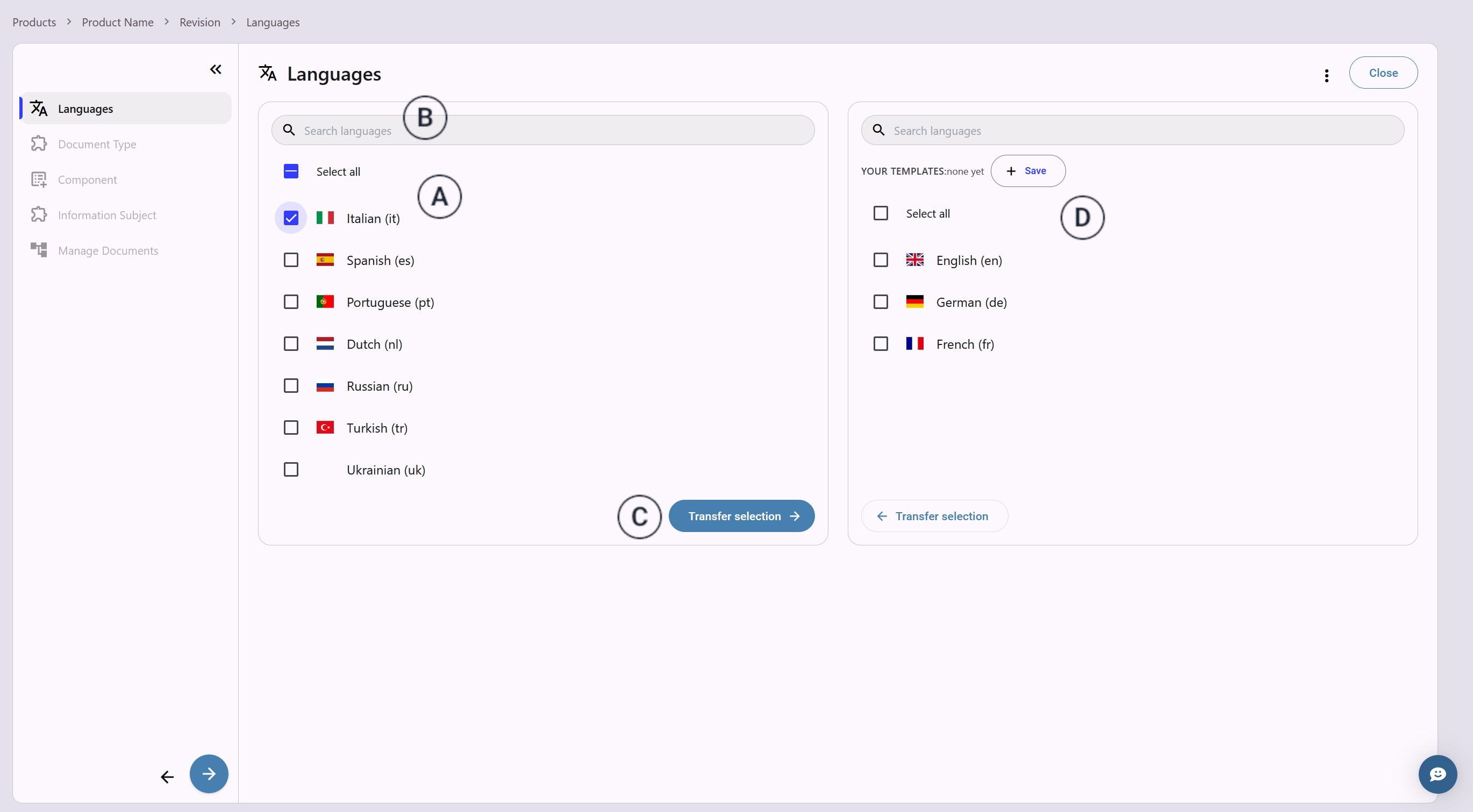
Select the languages in which your documentation is translated in the
left languages list
 .
.
 Use the search bar
  to search for language subtypes like American English.
 -
Click "Transfer Selection"
 to make them available in your revision.
The selection appears in the list on the
right
to make them available in your revision.
The selection appears in the list on the
right  .
. -
Click "Close" to terminate the revision setup.
You
return to the revision panel. Your changes are saved automatically.