Assign Files
Roles: Editor, Reviewer, Admin Plans: Starter, Pro, Advanced, Enterprise
About This Task
Upload documentation files and assign them to the Documents with matching language and metadata values.
Instructions
-
 Go to the Product Explorer and open your product.
-
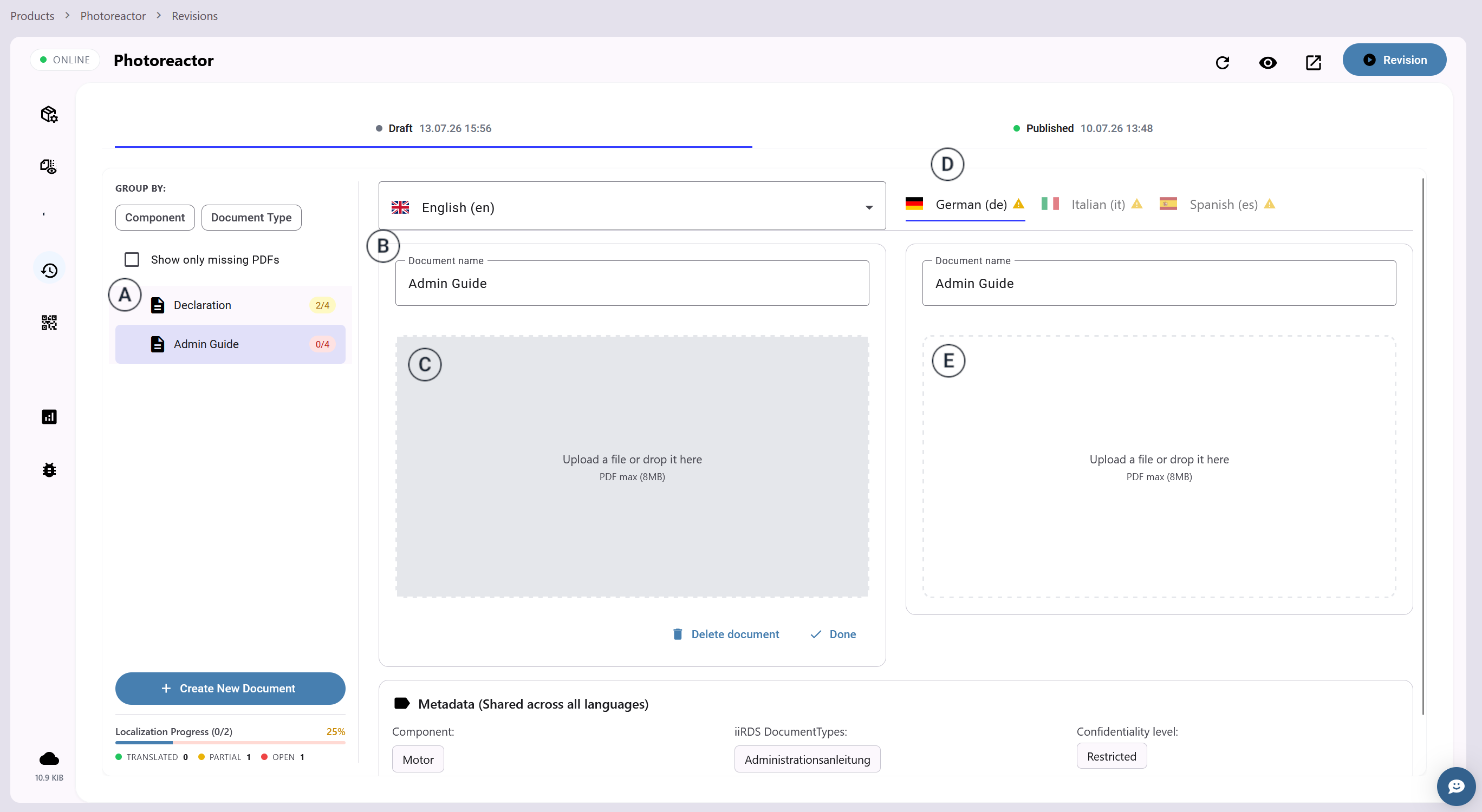
Go to the revision panel
 .
.
-
Select a Document from the list
 .
.
-
On the primary language card,
 click "Upload a file"
  .
.
-
Select the documentation file you want to assign to the doc on your computer. Then click "Upload".
 This file must be a PDF and must contain information that fits itsDocumentType and be in the current primary language.
 The revision and the localization progress bar are updated automatically
-
Select a secondary language card
 of the Document.
-
On the secondary language card, click on "Upload a file"
 .
.
-
Select the documentation file you want to assign to the doc on your computer. Then click "Upload".
This file must be a PDF and must contain information that fits itsDocumentType and be in the selected secondary language.
The revision and the localization progress bar are updated automatically
-
Repeat the previous steps to assign more files.