Create  Documents
Roles: Editor, Reviewer, Admin Plans: Starter, Pro, Advanced, Enterprise
About This Task
Set up the structure and metadata of your revision.
Documents act like boxes that contain one PDF file, and provide it with metadata.
Revisions with Documents work similarly to a file management system, allowing you to categorize your
documentation by language and information type, and to assign additional
metadata for enhanced navigability. During manual revision creation, you use Documents to set up your revision structure.
Document Metadata Overview
| Description | Required | |
|---|---|---|
| Name |
Unique identifier for the Document in this revision.
The Document name is only used in the EnduraDocs Manager.
|
Yes. |
| DocumentType |
States which type of information an Document contains. Typical values for an DocumentTypes are assembly instructions or eC declaration of conformity. An
Document can have multiple DocumentTypes if they apply. |
No. |
| Component | Connects the Document to a part of your device. This allows you to differentiate between
Documents with the same information type (DocumentType) that belong to different parts of your device. Typical components
would be pump, motor, control panel. |
No. |
| Confidentiality Level | Indicates that the Document contains sensitive or internal documentation files giving you additional
control on who can access them in the EnduraDocs Viewer or Documentation Portal. To make the documentation files assigned to a Document publicly accessible (after publishing) its set the confidentiality level
to Public. If you set it to Restricted, access to the documentation files assigned
to the Document is prevented for operating personnel that are not on the e-mail
whitelist of your workspace. |
No. |
Instructions
-
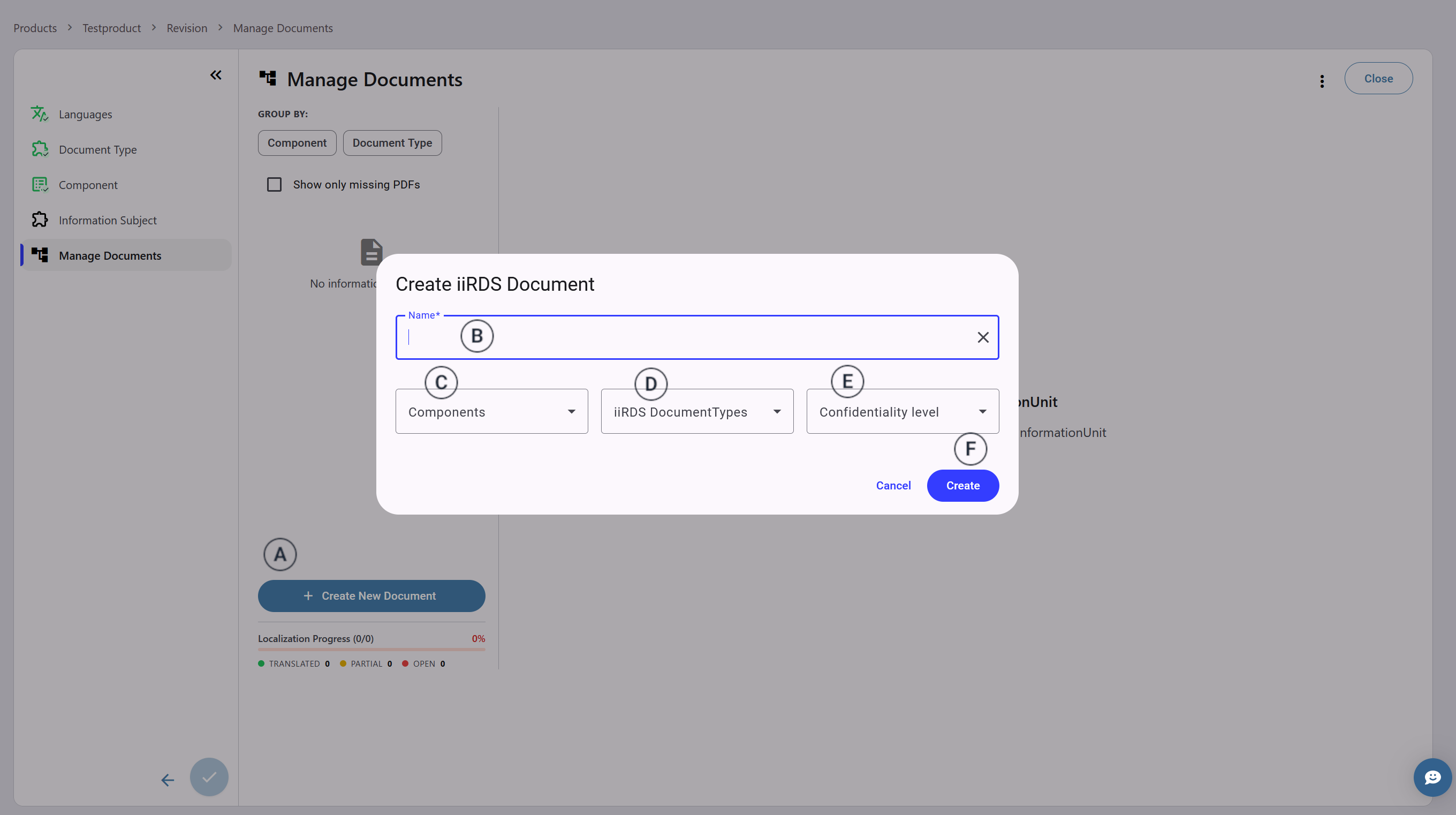
 Click "+ Document"
  .
.
 The Document creation window opens.
 -
Enter a name for the Document in the input field
 .
.
 The name serves as identifier and should be unique in this
revision.
The name serves as identifier and should be unique in this
revision. -
Select a Component
 .
Only previously added or created Components are available here.
.
Only previously added or created Components are available here. -
Select at least one DocumentType
 .
Only previously added or created DocumentTypes are available here.
.
Only previously added or created DocumentTypes are available here. -
Select a Confidentiality Level
 .
.
-
Click "Create"
 .
The window closes and the new Document is added to the revision.
.
The window closes and the new Document is added to the revision. -
Repeat steps 1 to 5 until your list of Documents is complete.
-
Click "Close". Then confirm to terminate the revision creation
You are
transferred to the Revision tab of the Product Page. Your revision state is
updated to Draft, and you can edit it at any time.