Create More  Documents
About This Task
Adjust or extend the current revision by creating moreDocument s. This allows you to upload more documentation files of your product and
integrate them into your revision.
Document Metadata Overview
| Description | Required | |
|---|---|---|
| Name |
Unique identifier for the Document in this revision.
The Document name is only used in the EnduraDocs Manager.
|
Yes. |
| DocumentType |
States which type of information an Document contains. Typical values for an DocumentTypes are assembly instructions or eC declaration of conformity. An
Document can have multiple DocumentTypes if they apply. |
No. |
| Component | Connects the Document to a part of your device. This allows you to differentiate between
Documents with the same information type (DocumentType) that belong to different parts of your device. Typical components
would be pump, motor, control panel. |
No. |
| Confidentiality Level | Indicates that the Document contains sensitive or internal documentation files giving you additional
control on who can access them in the EnduraDocs Viewer or Documentation Portal. To make the documentation files assigned to a Document publicly accessible (after publishing) its set the confidentiality level
to Public. If you set it to Restricted, access to the documentation files assigned
to the Document is prevented for operating personnel that are not on the e-mail
whitelist of your workspace. |
No. |
Instructions
Requirements:
- Revision State = Draft.
- User Role = Editor, Reviewer, or Admin.
-
 Go to the Product Explorer and open your product.
-
Go to the revision panel
 .
.
-
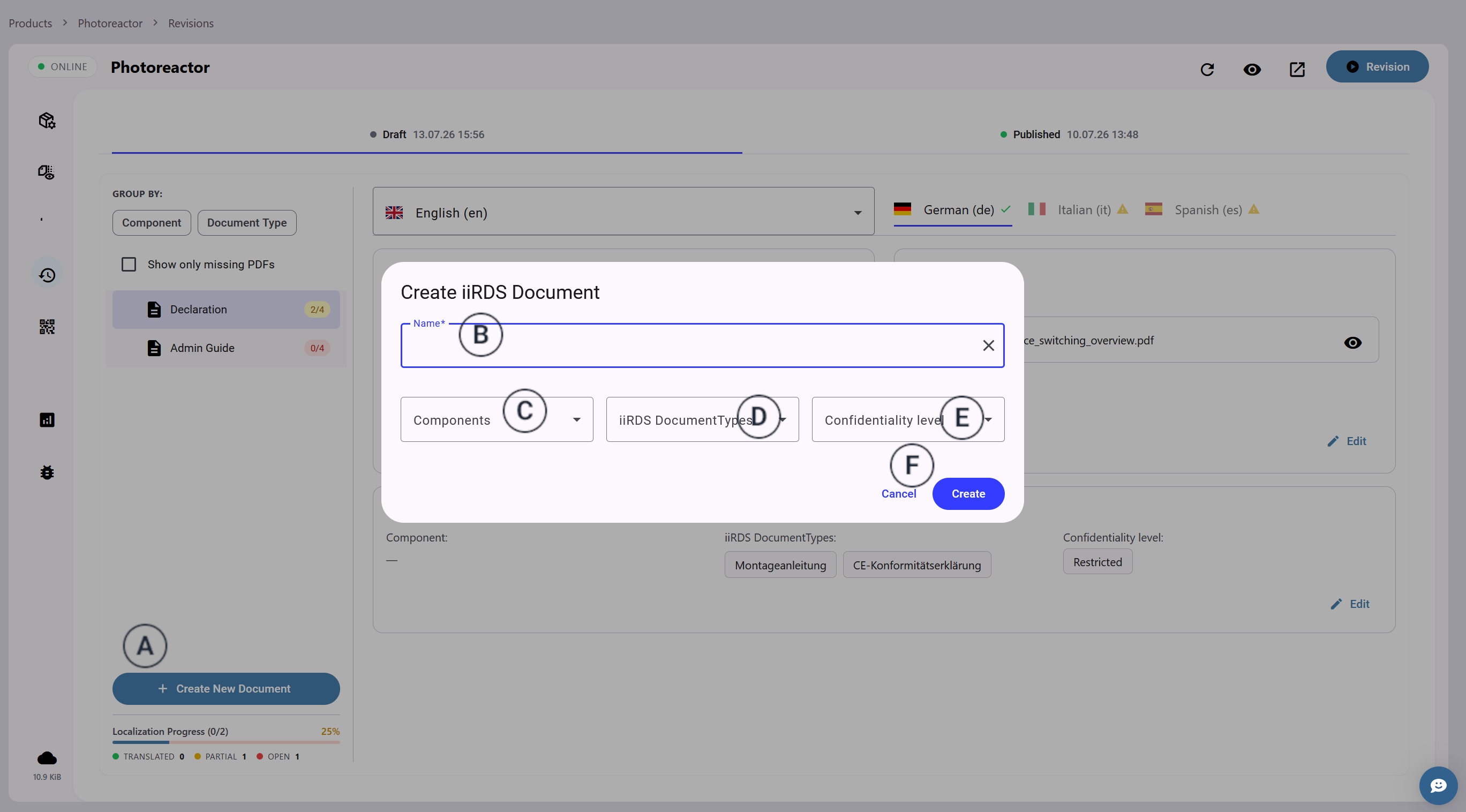
Click "+ Document"
 .
.
 The Document creation window opens.
 -
Enter a name for the Document in the input field
 .
.
 The name serves as identifier and should be unique in this
revision.
The name serves as identifier and should be unique in this
revision. -
Select a Component
 .
Only previously added or created Components are available here.
.
Only previously added or created Components are available here. -
Select at least one DocumentType
 .
Only previously added or created DocumentTypes are available here.
.
Only previously added or created DocumentTypes are available here. -
Select a Confidentiality Level
 .
.
-
Click "Create"
 .
The window closes and the new Document is added to the revision.
.
The window closes and the new Document is added to the revision.